The Ultimate Guide to Merging PDFs Without Uploading: 100% Private (2026)
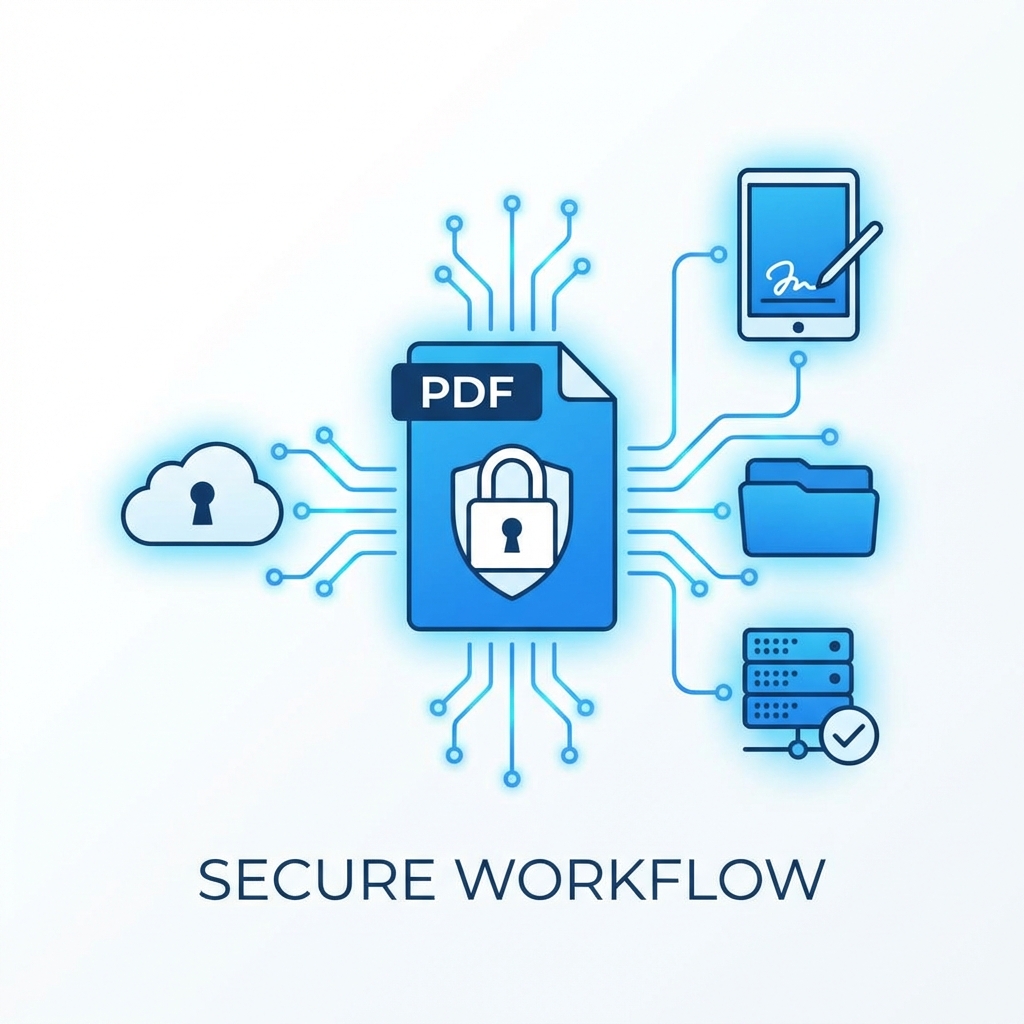
In an era where data is the new gold, the way you handle your documents matters more than ever. Whether you're a legal professional combining contracts, a healthcare worker organizing patient records, or a student assembling a thesis, the security of your PDF files is paramount.
For years, the standard advice was simple: Use Adobe Acrobat or risk it with a "free online converter." But today, a third, superior option has emerged: Client-Side Browser Merging.
In this comprehensive guide, we will break down why you should stop uploading your sensitive files to the cloud, how modern tech like WebAssembly is making digital privacy a reality, and the exact steps you can take to merge PDFs with 100% privacy—for free.
The Hidden Security Risks of Cloud-Based PDF Mergers
When you type "merge PDF" into Google, you're greeted with a wall of "free" tools. While they look convenient, they operate on a flawed security model: The Server-Side Pattern.
1. The "Black Hole" of Data Retention
In a server-side model, your file is uploaded to a remote server. Even if a site claims to "delete files after 1 hour," you are trusting that:
- Their deletion script actually ran.
- No backups were created.
- No logs containing your data were stored.
- The business isn't harvesting data for AI training or metadata analysis.
2. Vulnerability During Transit
As your document travels from your computer to the server, it is vulnerable to "Man-in-the-Middle" (MITM) attacks if the site's SSL configuration is weak or if you're on a public Wi-Fi network.
3. Regulatory Non-Compliance (GDPR, HIPAA)
For businesses, uploading client data to a random third-party server is often a direct violation of compliance standards like GDPR or HIPAA. Using a tool that processes data locally is the easiest way to remain compliant.
Warning: Cybercriminals often set up "Free Utility" sites specifically to harvest metadata from sensitive PDF documents for phishing and corporate espionage.
Why Client-Side Processing is the Future of Document Privacy
At ToolMint, we believe that privacy shouldn't be a luxury feature. We utilized a Zero-Backend Architecture to solve the trust problem entirely.
How WebAssembly (Wasm) Protects Your Data
WebAssembly is a technology that allows complex software (like a PDF engine) to run inside your web browser at near-native speeds.
When you use our Merge PDF Tool, your browser downloads the "merger engine" once. From that point on, all the work happens on your CPU.
- No Uploads: Your files are read into your browser's memory.
- No Downloads: The final PDF is generated in your memory and saved locally.
- Zero Network Activity: Once the tool loads, you could literally turn off your Wi-Fi and it would still work.
Comparison: ToolMint vs. Cloud vs. Desktop
| Feature | ToolMint (Client-Side) | Cloud (SmallPDF/iLovePDF) | Desktop (Adobe Acrobat) |
|---|---|---|---|
| Privacy | ✅ 100% (Local) | ❌ 0% (Uploaded) | ✅ 100% (Local) |
| Cost | 🚀 Free Forever | 💰 Paid / Limited Free | 💸 $20+/mo Subscription |
| Speed | ⚡ Instant | ⏳ Limited by Upload/Download | ⚡ Instant |
| Setup | 🌐 No Install | 🌐 No Install | ⬇️ Heavy Installation |
| Compliance | ✅ GDPR/HIPAA Ready | ⚠️ Compliance Risk | ✅ Compliance Ready |
Step-by-Step: How to Use ToolMint for Professional Merging
ToolMint is designed to be as simple as premium software but more accessible.
1. Preparation
Ensure your files are ready for merging. If you have different file types (like images), use our Image Compressor first to ensure your final PDF isn't unnecessarily large.
2. Upload (Locally)
Go to the ToolMint Merge PDF page. Drag your files into the box. You'll notice they appear instantly—this is because no uploading is happening.
3. Sequence Optimization
Order matters. In ToolMint, you can drag cards to reorder.
- Pro Tip: For legal filings, ensure your "Cover Sheet" is the first file, followed by "Exhibits" in alphabetical order.
4. Generation
Click "Merge PDF". Our engine will verify the structure of each PDF and weave them into a single, cohesive document.
OS-Native Workarounds: MacOS and Windows
Sometimes you might not have internet access to even load a browser tool. Here is how to do it using your operating system's built-in features.
MacOS: The Preview Method
MacOS has one of the best built-in PDF mergers.
- Open the first PDF in Preview.
- Go to
View > Thumbnails. - Drag the other PDF files directly into the thumbnail sidebar.
- Rearrange and go to
File > Export as PDF.
Windows: The "Combine" Struggle
Windows does not have a native "Merge" button. You usually have to open each file, go to Print, and use "Microsoft Print to PDF" to save them as a single file, which is tedious and often ruins formatting. This is where a browser-based tool like ToolMint is essential for Windows users.
Advanced Tips for Complex PDF Scenarios
1. Handling Password-Protected Files
If a PDF is locked, our client-side tool will respect that security. You must remove the password using a tool that runs locally before merging.
2. Managing File Size in Merged Documents
A common mistake is merging multiple 50MB scans into one 500MB monster.
- Solution: Use our PDF to JPG tool to extract pages, compress them, and then re-merge.
3. OCR and Searchability
If you are merging scans of physical paper, the resulting PDF might not be searchable. Ensure you use an OCR (Optical Character Recognition) tool before or after merging to make your documents professional.
Case Study: Digital Privacy in Small Law Firms
A boutique law firm in New York was spending $1,200 a year on PDF software subscriptions. More concerningly, junior associates were frequently using non-compliant "free cloud converters" to meet deadlines.
The Solution: The firm bookmarked ToolMint's Client-Side Merger across all workstations.
The Result:
- Cost Savings: $1,200/year eliminated.
- Security: 100% of document processing was brought back "in-house" (within the browser).
- Efficiency: Employees no longer had to wait for 200MB discovery files to upload to the cloud.
Frequently Asked Questions
Does ToolMint work offline?
Once you have loaded the page once, the code is cached in your browser. Since all processing is client-side, you can actually continue to merge and process files even if you lose your internet connection.
What about very large files (500MB+)?
Because there is zero upload/download time, ToolMint is actually the fastest way to handle giant files. As long as your computer has enough available RAM (most modern laptops do), the merger will process it instantly.
Is ToolMint GDPR compliant?
Yes. GDPR and HIPAA strictly regulate the transmission and storage of personal data. Since ToolMint never transmits or stores your data, it is inherently compliant by design.
Conclusion
The web is evolving. We are moving away from centralized cloud processing and toward a future where "the browser is the operating system." Private, client-side tools like ToolMint are at the forefront of this shift.
Don't gamble with your data. The next time you need to combine documents, choose the method that prioritizes your security.
Ready to try the most secure PDF merger on the web? Click here to merge your PDFs with 100% Privacy.
Expert Review: This guide was written by the ToolMint engineering team to explain the technical benefits of WebAssembly-based document processing. For further reading on Wasm security, visit WebAssembly.org.
Privacy Disclaimer: While we ensure no data is sent to our servers, you should always ensure your browser extensions and local environment are secure.